Loading... Please wait...
ADVANCED INTERFACE FOR EASY INTEGRATION WITH YOUR APPLICATION
The user can click on another button and make his own dictation, save it to the hard drive or remote network, etc
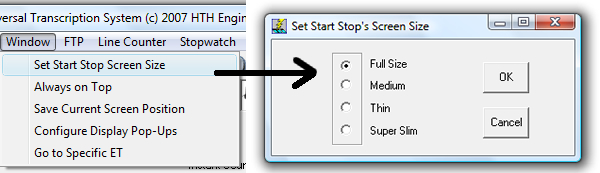
Screen Sizes
In the screen mode option you have the ability to change the sizes of the Start Stop window so that it fits your needs... Literally!
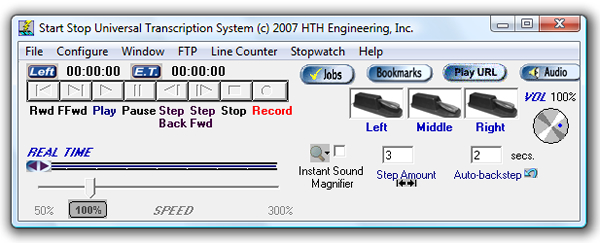
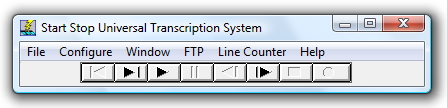
STANDARD MODE
Displays the Start Stop screen in standard mode, for full functionality.
MEDIUM MODE
Displays the Start Stop screen in medium mode, for better use of screen space.
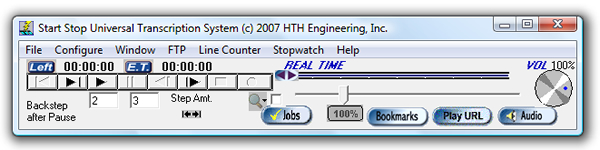
THIN MODE
Displays the Start Stop screen in a "thin sliver" mode, for better use of screen space.

SUPER THIN MODE
Displays the Start Stop screen in a super "thin sliver" mode, for better use of screen space.
Bookmarks
BOOK MARK FEATURE
The Start Stop will let you save up to 16 bookmarks for each transcription or recording. The bookmarks are saved with respect to Elapsed Time. You can type in a separate text label for each of the bookmarks to help you remember what they’re for.

Settings
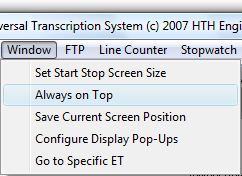
Always on Top
The Main Screen (all sizes) can be selected for “Always on Top” operation if desired, operated on the task bar minimized, or in the background while using your favorite word processor.
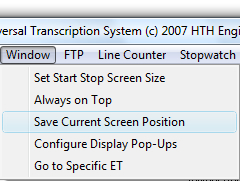
Save Screen Position
You can set up the Start Stop screen to always position itself at the same spot on the computer monitor, like a Post-It™ note.
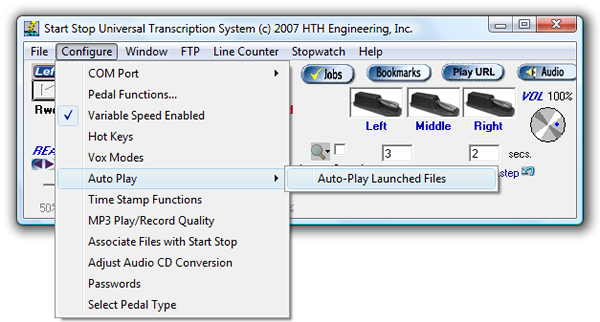
Auto-Play Launched Files
Files can be automatically played when launched, for quick review.